Time Blocking Software: Pick by How Your Day Breaks
Get the next article and product update in your inbox
Short product notes, fresh blog posts, and focus systems. No noisy sequence.

Time blocking software takes the tasks you’d otherwise keep in a list and gives each one a slot on your calendar, next to your meetings, so the day has a shape before it starts. Every tool in the category does that part. Where they differ is who does the placing, and what happens at 11:40 when the 11:00 meeting is still going.
That second question is the one that decides whether you keep using the thing. Most people I know who “tried time blocking and it didn’t stick” didn’t fail at the method. Their day moved, the calendar stopped describing reality, and re-dragging twelve blocks felt worse than working from memory. So pick software by how your day breaks, not by the feature grid.
The market sorts into four kinds:
- Calendar-only, manual. Google Calendar, or a phone-first blocker like Timebloc. You draw every block yourself. Free or close to it, and nothing re-plans.
- Task app with a calendar view. Todoist, TickTick. Tasks live in a list; you drag them onto days or hours. Good capture, manual placement.
- Guided planners. Sunsama, Morgen, Akiflow. Built around a planning routine, with helpers that find slots or suggest a plan, while you stay the one who commits it.
- Auto-schedulers. Motion, Reclaim, FlowSavvy, Fokus. You give tasks a duration, a priority and a deadline; the software places them and moves them again when the calendar changes.
If your calendar rarely changes after 9am, the first two can hold a plan, but nothing in them re-plans it on the day it does move. If it changes several times a day, the manual options will quietly cost you more than any subscription, because you’ll pay in re-planning time or in abandoned plans. What a working day needs is both halves: a calm way to decide the day in the morning, and software that rebuilds it when the morning doesn’t hold. That combination is why I plan in Fokus, and it’s the lens for the rest of this article.
If you’re new to the method itself, start with the complete guide to time blocking. This piece assumes you know why you’d block time and are choosing where to do it.
Four kinds of time blocking software, on two axes
The ranking articles for this term are mostly lists. Zapier’s December 2025 roundup says it tested more than 30 apps and picked six. The Digital Project Manager, updated in August 2026, lists ten. FlowSavvy’s September 2026 list is the most useful of the three, because it groups its nine picks into AI-powered automatic schedulers, premium manual planners and simple tools. (It’s also written by one of the auto-schedulers, so read its rankings with that in mind.)
Grouping helps more than ranking. Two questions place almost every tool:
- Who puts tasks on the calendar: you, or the software?
- Where does the plan start: from a task list, or from the calendar?
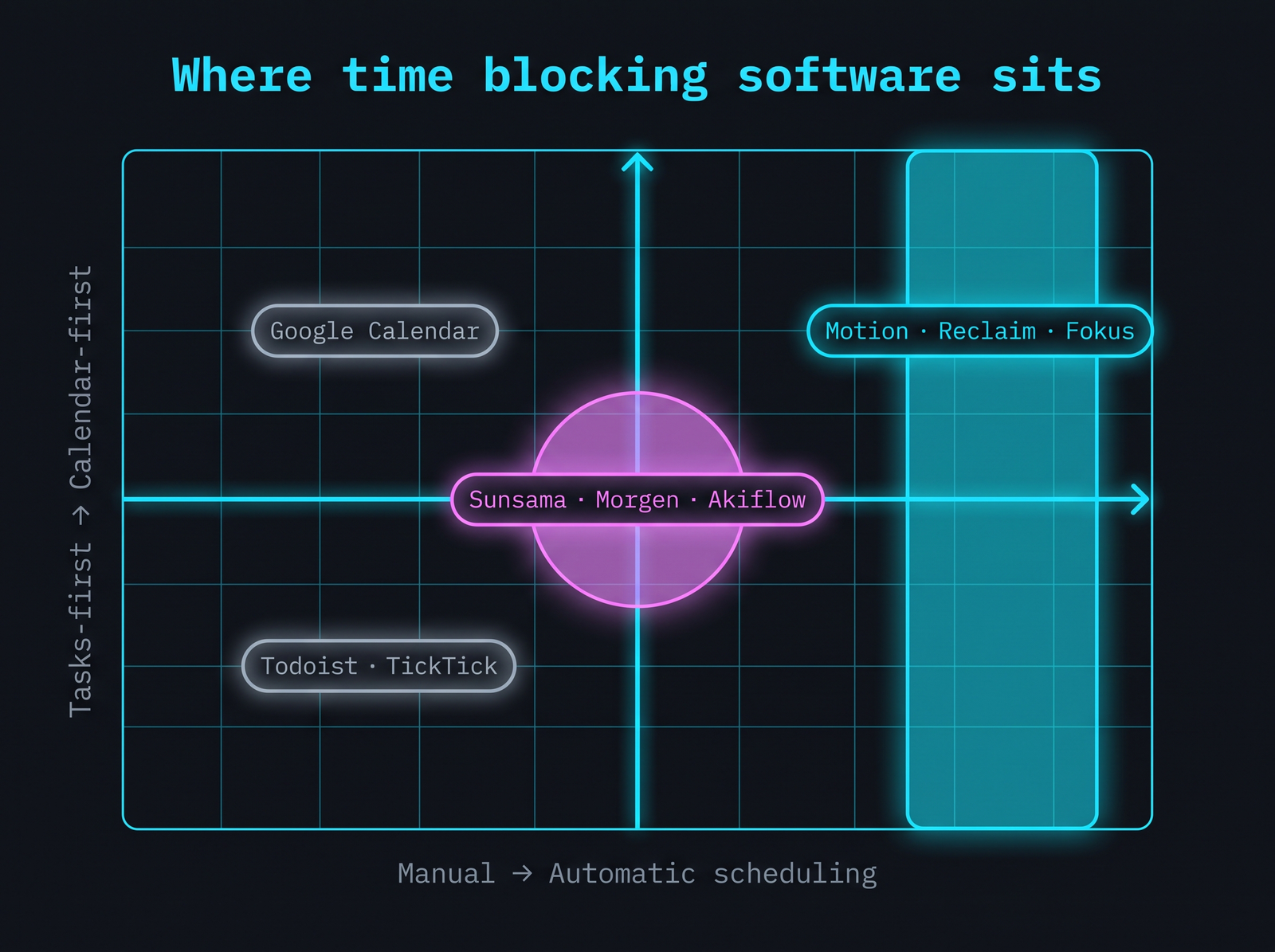
Most arguments about “the best time blocking app” are really arguments about which corner you belong in.
Calendar-first tools work well when your meetings are the skeleton of the day and tasks fill the gaps. Reclaim is the clearest example: it works inside Google Calendar and Outlook Calendar and schedules tasks, habits, breaks and focus time around what’s already there. Tasks-first tools suit people whose real problem is a long, shifting list that has to be squeezed into whatever the calendar leaves over.
The guided middle is built around a real preference: many people want help deciding the day, not only autopilot. Morgen’s AI Planner, per its homepage, shows recommendations inside your calendar and schedules them once you confirm. Sunsama will find the next open slot for a task when you ask it to. Neither decides your day for you. Fokus meets the same preference without giving up the automation: its Morning Briefing walks you through planning the day, and the scheduler takes over the placing and the re-placing.
What happens when the day moves
This is the test the listicles skip, so here’s the scenario I use on every tool I trial. You planned 9:00–12:30 as: 9:00 standup, 9:30–11:00 writing block, 11:00–11:30 client call, 11:30–12:30 review queue. The client call runs to 12:10. What does the software do with the review queue and the rest of the afternoon?
| Tool | What it does when the 11:00 runs over | Who decides |
|---|---|---|
| Google Calendar | Nothing. Blocks stay where you drew them, now overlapping reality. | You, by hand |
| Todoist / TickTick | Nothing automatic. You drag tasks to new slots. | You, by hand |
| Sunsama | Auto-rescheduling shifts its own tasks when they conflict or when you finish early; meetings are never moved. If there’s no room, the task comes off the calendar. | Software for conflicts you create; you for the rest |
| Morgen | AI Planner adapts its recommendations in real time and helps reprioritise on conflicts; you confirm before anything is scheduled. | You, with suggestions |
| Motion | Says it re-plans your day automatically whenever anything changes. | Software |
| Reclaim | Says it dynamically adapts tasks, meetings and focus time to resolve conflicts. | Software |
| Fokus | Rebuilds the remaining schedule around the meeting; “Optimize Schedule” re-runs it in one click. | Software, with a one-click override |
The Sunsama detail is worth knowing because it’s easy to assume more or less than it does. Its help docs say auto-rescheduling only moves Sunsama tasks, never your meetings, and can be switched off in settings. When there’s no space left, it doesn’t offer to extend your day; in its words, “the task will simply be unscheduled from the calendar.” That’s a sensible, conservative design. It also means an overloaded afternoon shows up as missing blocks rather than as a warning.
For Akiflow, the homepage now advertises time blocking your day automatically through its assistant, Aki, with auto-scheduling “always in control”. I couldn’t find documentation on what it does when a meeting overruns, so I won’t guess.
Tool by tool: what each one does
Google Calendar. The free baseline, and where most people draw their first blocks. FlowSavvy’s review notes it has added task durations and custom colour labels. Focus time, which can auto-decline meetings during a block, needs an eligible work or school account: per Google’s help centre, Workspace Business Standard or Plus, Enterprise, Education or Nonprofits. Nothing re-plans.
Todoist and TickTick. Solid lists, manual calendars. Todoist’s calendar layout, per its help centre, is a Pro and Business feature and lets you drag tasks to days and times. TickTick offers day, week, month and year views, plus a built-in Pomodoro timer and habit tracker, which is why it keeps showing up as the budget all-rounder. Both leave re-planning to you. Todoist also connects to Fokus, so the list can stay where it is while Fokus does the scheduling.
Sunsama. Built around a daily ritual: plan in the morning, timebox onto the calendar, shut down in the evening with a summary. It pulls tasks from more than 20 tools, including Asana, ClickUp, Notion, Todoist and Trello. Re-planning stays largely with you: as above, when a conflict leaves no room, the task comes off the calendar. It has a 14-day trial with no card required.
Morgen. A calendar layer first: Google, Outlook, Apple and Fastmail calendars, tasks from Notion, ClickUp, Linear and Todoist, and booking links that check availability live. Its AI Planner proposes and you confirm, so nothing lands on the calendar until you’ve approved it.
Akiflow. Built for capture: a universal inbox that two-way syncs your tools, turns emails into tasks and saves Slack messages to reply later. FlowSavvy classifies it as a premium manual planner, even as Akiflow’s own site pushes its newer automatic features.
Motion. Automatic by design. Its homepage describes prioritising and time blocking your projects and tasks, re-planning when anything changes, and separating when a task gets done from when it’s due, with warnings when a deadline is at risk. It’s aimed at individuals and teams, and FlowSavvy describes it as leaning toward team project management.
Reclaim. The calendar-first auto-scheduler: tasks, habits, breaks and focus time placed inside Google or Outlook Calendar, adapted as the week shifts. It has a free-forever plan for individuals.
Fokus. What I use, and the one I’d point anyone planning a working day to, because it covers both halves of this list. The morning half is the Morning Briefing: a calm planning ritual that walks you through the day, surfaces the things that matter, and gives the finished plan a score for the quality of the planning, so you start from a day you’ve actually decided. The rest of the day is the scheduler’s job: Fokus takes your tasks, reads your calendar, places work around your meetings with rollover, priority elevation and deadline awareness, puts demanding work into the peak-productivity windows you set, and rebuilds the plan when the day moves, with “Optimize Schedule” as a one-click rebuild. It sits as the layer above your other tools: it connects to Google, Outlook and Apple calendars and to task sources like Jira, Linear, Asana and Todoist through its integrations, so the schedule comes from real workload rather than a retyped list. It’s free during its public beta, with no credit card. Pricing after the beta is on the pricing page: €15/mo billed yearly, or €19 monthly.
Manual vs automatic: what you give up either way
The real downsides of time blocking are mostly software choices in disguise.
Manual tools cost you a re-planning tax. Every overrun, every urgent request, every task that took twice as long means dragging blocks. On a stable day that’s a minute. On a volatile one it’s the moment people quit: the plan is wrong by 10:30 and fixing it feels like admitting defeat. The time blocking guide calls this “calendar-as-fiction”, one of the four classic ways the method dies.
Automatic tools cost you three things instead.
- Legibility. When software moves blocks, you have to trust or check it. A plan you didn’t make is easier to ignore. This is what the morning step is for: in Fokus, the Morning Briefing walks you through the plan before the day starts, so it’s yours even when the scheduler did the placing.
- Churn. A schedule that reshuffles often can feel like the floor moving. Look for a tool that rebuilds when the day actually moves and schedules around your meetings rather than through them.
- Garbage in. Auto-scheduling depends on durations and priorities. If you estimate a two-hour task at thirty minutes, the software will confidently build a day that can’t happen. It re-plans faster than you would, and it works from the durations you give it.
The guided middle trades some of both: less re-planning than manual tools, more legibility than full automation, and a daily ritual to keep you honest. It also keeps a tax, because on bad days you’re still the one re-deciding. Fokus is built so you don’t have to choose: the ritual in the morning, the automatic rebuild when the day breaks.
A rule I trust: count how many times your plan broke last week. Under three, the plan you make each morning is doing most of the work, because making the plan yourself is part of what makes you keep it. Over ten, you’re paying for automation whether you buy it or not. Most weeks land somewhere in between, which is exactly the case for a planner that does both.
Pick by working style: a decision path
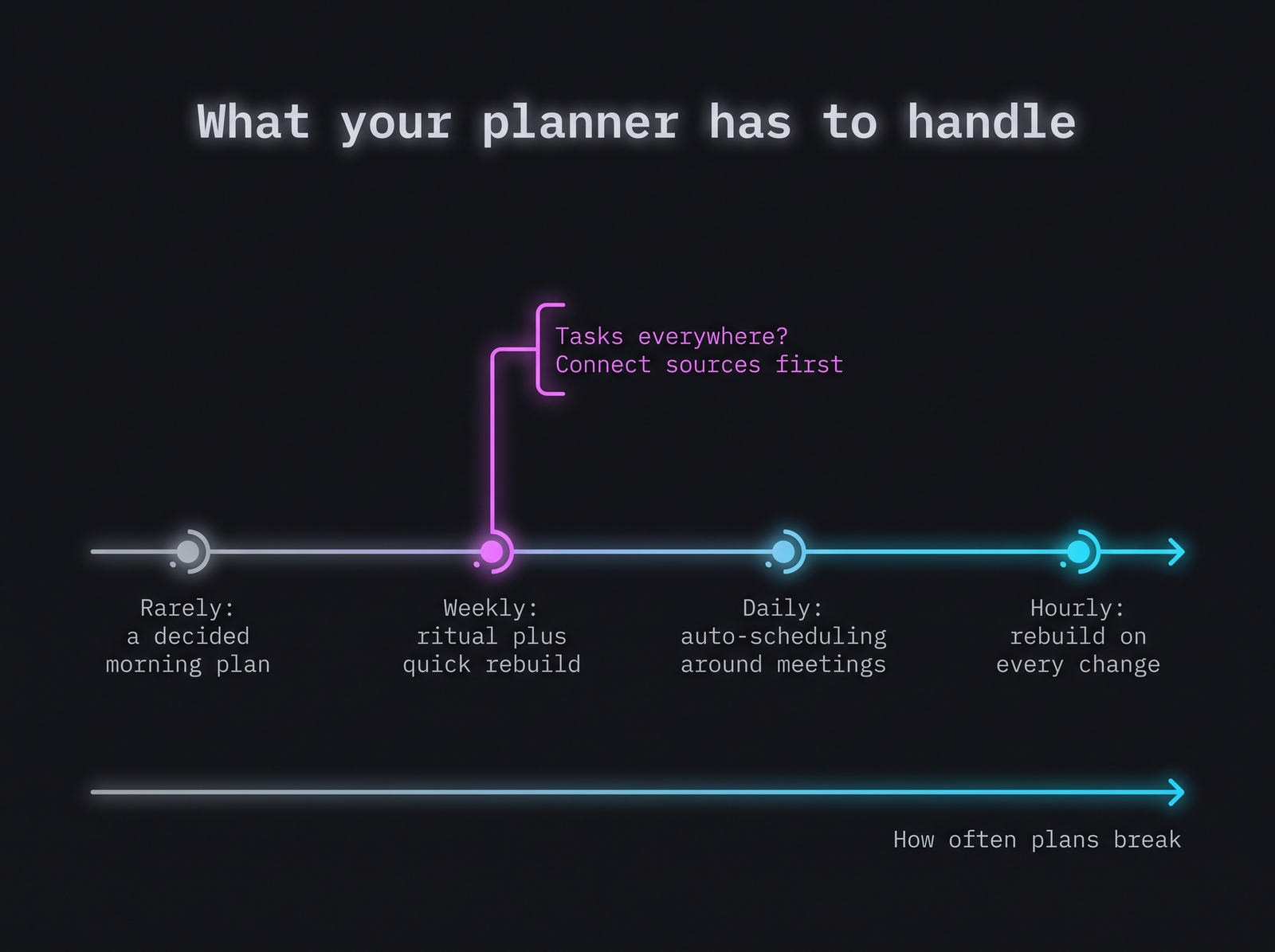
Volatility decides how much the planner has to do for you. Fokus covers the whole line, from the morning plan to the hourly rebuild.
Start with volatility, then adjust for where your tasks come from.
- Maker with a quiet calendar (engineer, writer, designer with two meetings a day). Your day rarely moves, so the morning decision is most of the work. In Fokus that’s the Morning Briefing: plan the day, protect two long blocks for deep work, and check the plan score before you start. Add a weekly planning session on top. On the rare day that does move, the rebuild is one click.
- Planner by temperament (you like choosing the day each morning). Moves weekly, not hourly. Fokus’s Morning Briefing is exactly that calm, guided ritual: it walks you through the day, surfaces what’s important and scores the quality of the plan, so the choosing stays yours. When the week does move, the scheduler rebuilds instead of leaving you to re-drag.
- Manager with a fragmented calendar. Moves daily. This is where automatic scheduling pays off. Fokus places tasks in the gaps around your meetings, puts demanding work into your peak-productivity windows, and keeps deadlines in view as the day shifts.
- Founder or lead in reactive mode. Moves hourly. Full auto-scheduling, with a strong capture layer. A tool that rebuilds on every change beats a better-looking plan you can’t keep. In Fokus, “Optimize Schedule” re-runs the whole day in one click, and unfinished work rolls over instead of disappearing.
- Tasks in nine places (Jira, email, Slack, Notion). Solve capture first or no scheduler helps. Fokus pulls from your stack directly through its integrations, including Jira, Linear, Notion, Asana, Todoist, Slack and Gmail, so the schedule is built from where work actually arrives. A proper task management system matters more than the calendar on top.
- Teams coordinating meetings. A different problem from personal time blocking. Zapier’s December 2025 pick for teams, Clockwise, optimised meeting times across team members; it shut down in March 2026 after Salesforce acquired the team. For your own side of it, Fokus’s Booking Pages add-on gives people a shareable link to book time with you.
How to trial time blocking software in one week
Free trials elsewhere are short: 7 days for Akiflow, 14 for Sunsama. Fokus is free during its public beta, with no credit card, so you can run a full week on your real calendar. Don’t spend it admiring the onboarding. Run these four tests:
- Day one: connect everything. Calendars and task sources. If connecting your actual stack takes more than twenty minutes, count that as a result.
- Day two: the overrun test. Let a meeting run 30–40 minutes over, then look at the afternoon. Did the software move anything? Was the result a day you’d actually follow?
- Day three: the insertion test. Add an urgent two-hour task at 10am. Does something else move, drop, or get flagged? Silent disappearance is the worst answer.
- Day four: the rollover test. Leave two tasks unfinished. Where are they tomorrow morning, and did you have to do anything?
Then count your manual drags on day five. That number, more than any feature list, tells you whether the tool fits your week. In Fokus, days two to four are the cases the automatic rebuild and rollover are built for, and the Morning Briefing’s plan score gives you a second number to watch each morning.
Quick answers
What is the best free app for time blocking? Fokus. It’s free during its public beta, with no credit card, and that includes the auto-scheduling, the one-click rebuild and the Morning Briefing ritual. Google Calendar is where most people draw their first blocks by hand, but nothing in it re-plans.
What is the best website for time blocking? Fokus. It runs in the browser, so there’s nothing to install, and it plans and re-plans the day for you. If you’d rather not live in a tab, it also has desktop apps for macOS, Windows and Linux and a Chrome extension.
Is Timebloc a good app? For what it is, yes: a simple, phone-first manual time blocker with reusable daily routines. Its site doesn’t describe calendar import or auto-scheduling, so it suits personal routines better than a meeting-heavy workday.
What is the best time blocking method? The one you’ll re-plan. Blocks for deep work, batches for shallow work, and a buffer. The difference between time boxing and time blocking is worth five minutes if you’re choosing between fixed slots and fixed durations.
What is Elon Musk’s time blocking method? Five-minute slots, pre-assigned. It’s covered, with the reasons not to copy it, in the complete guide. No software makes five-minute blocks sustainable without an assistant.
What are the downsides of time blocking? Over-scheduling, bad estimates, and plans that go stale by mid-morning. Software fixes the third, helps with the second if it learns from actuals, and can make the first worse if it fills every gap. Leave buffer, whatever the tool.

Fokus Team
The Fokus Team
The team behind Fokus — building the smart productivity platform.